As an Amazon Associate, we earn from qualifying purchases. Some links on this site are affiliate links at no extra cost to you. Our recommendations are based on thorough research and editorial judgment.

Resolving Screen Flicker On Monitors

To resolve screen flicker on monitors, we should first check physical connections like power and video cables for tightness and damage. Next, we can update or roll back graphics drivers to eliminate software issues. Adjusting display settings such as refresh rates can also help guarantee compatibility. Additionally, examining the monitor and GPU for overheating might reveal hardware problems. If flicker persists, we can explore alternative equipment options. How about we continue to dive deeper into these troubleshooting steps?
Key Takeaways
- Check and secure all power and video cable connections to eliminate loose connections causing flicker.
- Update graphics drivers to the latest version; consider rolling back if issues arise post-update.
- Adjust the display refresh rate and resolution settings to match the monitor’s specifications for stability.
- Inspect the monitor and GPU for signs of aging or overheating, ensuring proper maintenance and cooling.
- Disable hardware acceleration in browsers and other software to resolve potential conflicts that may cause flickering.
Common Causes of Screen Flicker
You may be interested


When we encounter screen flicker, it can be both frustrating and distracting, often stemming from several common issues. Outdated or corrupted display drivers frequently lead to flicker patterns, failing to render our screens correctly. Additionally, incorrect refresh rates or resolutions can trigger instability, requiring adjustments to align with our monitor’s specifications. Conflicts from incompatible software can further complicate matters, interacting poorly with the display technology. We should also consider the impact of malware, which can disrupt display-related processes. Finally, aging graphics cards or unstable power sources can contribute to flickering. By addressing these issues, we can enhance our visual experience and eliminate those bothersome flickers for good.
Troubleshooting Physical Connections
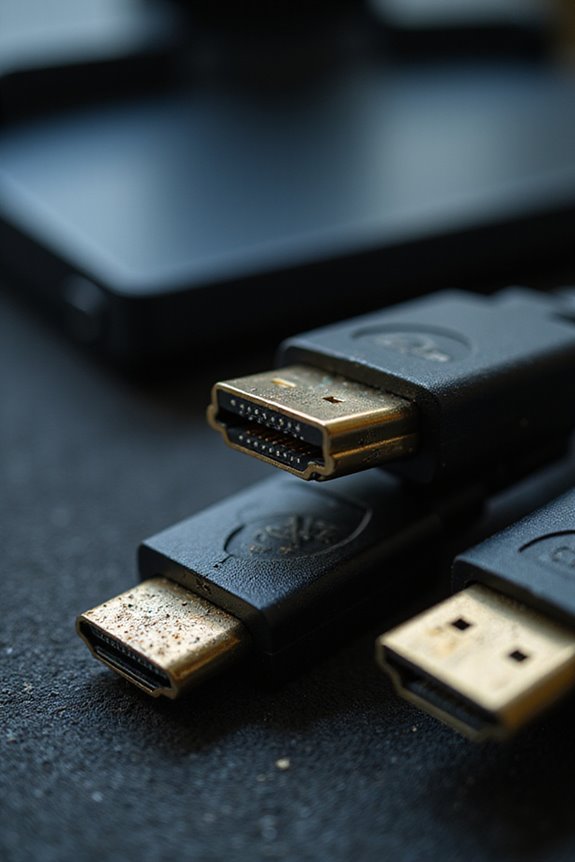
To effectively tackle screen flicker issues, it’s essential to start with the physical connections between our monitor and other devices. First, we should check the power connections; guaranteeing the monitor’s power cable is firmly plugged in can make a significant difference. Next, let’s inspect the video cable connections. A loose HDMI or DisplayPort can lead to flickering, so we must guarantee everything is tightly connected. Visible cable damage can also affect connection integrity, so let’s examine our cables for frays or kinks. Finally, practicing good cable management helps prevent tangles and pressure points that could lead to future issues. By systematically addressing these physical connections, we can often resolve flicker problems before moving on to more complex solutions.
Recommended Products

【Specification】package include:20 pcs large Adhesive Black Cable Clips. Product size:Length 46mm/1.8nch, Width 18.6mm/0.73inch, Height 12mm/0.47inch; Suitable for cables with diameter (maximum) of 8.5 mm/0.32 inches.
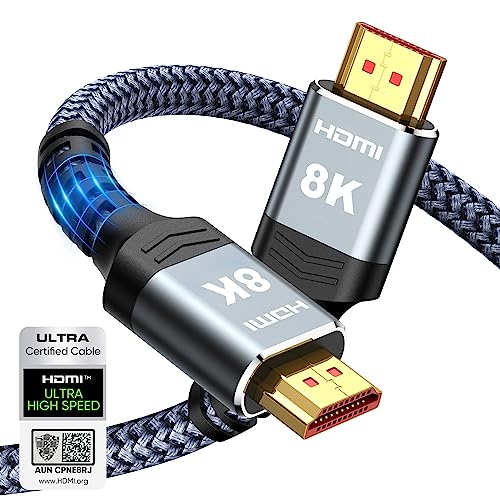
Top Technology--8K@60HZ: This 8K Ultra-High Speed 2.1 HDMI Cable uses the most cutting-edge technology, which is compatible with 8K@60HZ,4K@240HZ and 4K@120HZ clearly displays every particle, and accurately processes every signal source.

Top Technology----8K@60HZ: This 8K Ultra High Speed HDMI Cable uses the most cutting-edge technology, is compatible with 8K@60HZ and 4K@120HZ, clearly displays every particle, and accurately processes every signal source
Graphics Driver and Software Issues
While physical connections are essential in addressing screen flicker, we shouldn’t overlook the impact of graphics drivers and software settings. Outdated or corrupted graphics drivers often lead to flickering issues. When this happens, updating to the latest driver version usually resolves the problem. However, if flickering begins after an update, a driver rollback to a previous stable version might be necessary. Additionally, software conflicts, especially with browser hardware acceleration, can contribute to flicker. Disabling hardware acceleration in these applications may help. Tools like DDU can guarantee clean driver removal, preventing conflicts during reinstallation. Monitoring refresh rates and affirming compatibility with your graphics card is also vital for a stable viewing experience.
Recommended Products

Scan and update drivers as and when required - You can now easily download and install a variety of drivers for Windows in just a few clicks. Install latest drivers to...
Hardware Diagnostics for Monitor and GPU
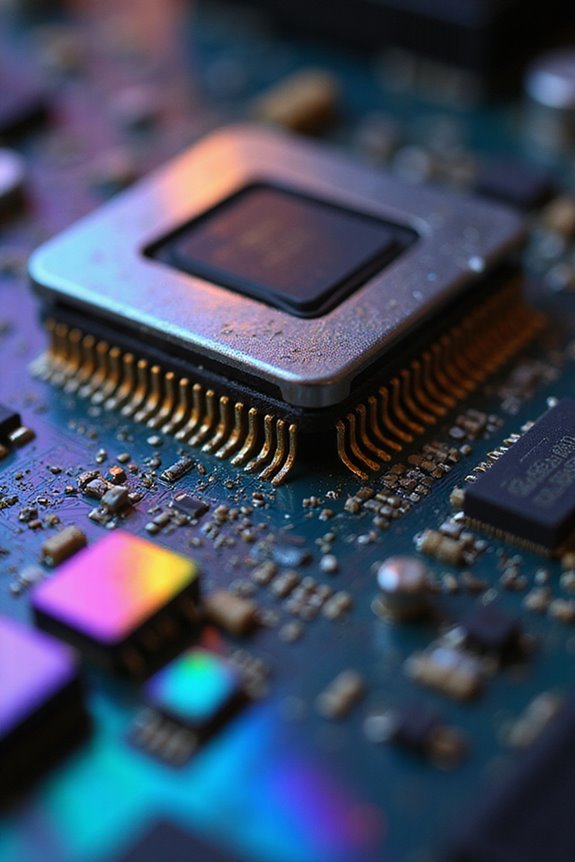
Identifying the root cause of screen flicker requires a systematic approach to hardware diagnostics for both the monitor and the GPU. First, let’s verify all cable connections are secure. Loose or damaged cables can lead to flickering, so we should check and firmly reconnect HDMI, DisplayPort, and power cables. Next, consider monitor maintenance; aging components like backlights and internal cables may degrade over time, contributing to flicker. We must also inspect the GPU for overheating. Adequate GPU cooling is essential; confirm it’s properly seated and functioning. Finally, if issues persist, testing with an alternate GPU can help determine if the graphics hardware itself is at fault. By addressing these areas, we can greatly reduce flicker issues.
Recommended Products

IN THE BOX: (1) 6-foot HDMI to DVI cable adapts an HDMI (input) to a DVI (output)

Connect the WII console to any HDMI-compatible HD device, The single-cable design eliminates screen flickering caused by multiple connections and allows for plug-and-play operation

【4K@30Hz Plug & Play Video Output】Enjoy crisp 4K@30Hz UHD resolution with this USB-C to HDMI cable—no drivers, no hassle. Instantly mirror or extend your screen for presentations, movies, or dual-monitor workspaces. The plug-and-play design makes it the ideal USB C to HDMI 4K Cable for home office, classroom, and on-the-go productivity. Note: The USB-C port must support “DisplayPort Alternate Mode.” Portable monitors are not supported.
Adjusting Display Settings
Screen flicker can often be resolved by tweaking our display settings, particularly the refresh rate. To adjust the refresh settings, we can navigate to Display Settings, select Advanced Display Settings, and then access Display Adapter Properties. Here, we can choose a higher refresh rate that’s compatible with both our monitor and GPU. If we’re using multiple monitors, it’s essential to set them all to the same rate to minimize flicker. Additionally, ensuring our display calibration matches the monitor’s native resolution can help maintain stability. If flickering persists, it may be worth exploring any dynamic refresh rate settings or potential conflicts with running applications. Keeping everything aligned will greatly improve our viewing experience.
Recommended Products

Compatible with Sceptre C345B-QUT168 C345BQUT168 Monitor 34" Curved Ultrawide WQHD Quad HD 3440 x 1440 1500R Curvature 165Hz Refresh Rate DisplayPort 1ms HDMI AMD FreeSync +19V DC19V 19.0V 19 Volt 19 Volts 19VDC 3.42A - 4.74A 65W - 90W 19.0VDC 19 V 19 VDC Power Supply Cord Cable Charger Mains PSU replaces lost or damaged power cords for these classic models

COMPACT DESIGN - The compact-designed portable BENFEI HDMI to DisplayPort adapter connects a computer, desktop, laptop, or other devices with HDMI port to a monitor, projector, HDTV, or other devices with DisplayPort port; Tuck this lightweight gadget into your bag or pocket to do a business presentation with your laptop and projector, or extend your desktop screen to a monitor or TV; A DisplayPort cable is required.

Important–Check Compatibility Before Purchase: Actual output depends on your laptop and USB-C port. Achieving 8K@60Hz or 4K@240Hz requires a compatible graphics card (NVIDIA RTX 2060/30/40 series, AMD RX 6000/7000 series, or Intel 11th/12th Gen with Iris Xe or newer), an HDMI 2.1 display, and a certified HDMI 2.1 cable. *NOTE: This adapter is limited to 4K@60Hz on macOS system. For higher refresh rates on macOS, use our firmware-enhanced macOS version (ASIN B0DCN798Y1 / Model 201488)
Power and Environmental Factors
As we work to eliminate screen flicker, it’s important to contemplate the broader context of power and environmental influences on our monitors. Unstable power sources can lead to voltage fluctuations that disrupt monitor stability. Regular voltage monitoring can help us identify these inconsistencies. Additionally, using grounding techniques can greatly reduce interference. For instance, ensuring our monitors are connected to properly grounded outlets minimizes the risk of electrical noise, which often causes flickering. Furthermore, employing uninterruptible power supplies (UPS) or surge protectors can further safeguard our setup, especially in areas prone to electrical storms. By addressing these power-related issues, we can enhance our viewing experience and reduce the likelihood of screen flicker.
Testing With Alternative Equipment
When tackling flicker issues, we can often gain valuable insights by testing with alternative equipment. First, we should replace our current monitor with a known good one to see if the flicker persists. This helps us determine if the issue lies within the display hardware itself. Next, let’s inspect our video cards. By reseating the video card or using an integrated GPU, we can identify if the flicker is due to graphics hardware. If we still experience flicker after these tests, it may indicate deeper issues, such as driver problems. Testing multiple alternative monitors and video cards systematically allows us to isolate the flicker causes effectively, leading us toward a solution more quickly.
Recommended Products
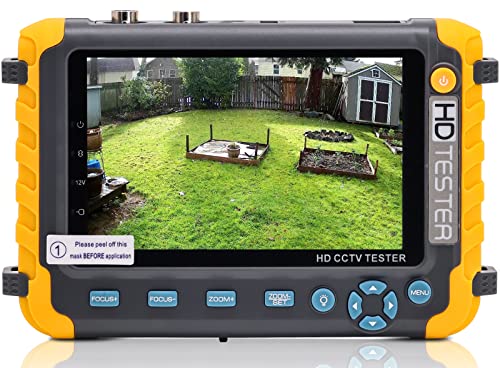
Support up to HD TVI video surveillance testing: Support 2MP, 3MP, 4MP, 5MP 8MP. When TVI signal input, the tester will display HD TVI camera image.

1. It is a nice CCTV tester monitor , portable and easy to carry, it can perfectly test AHD camera ,TVI camera and CVI camera up to 8MP, this monitor very suitable for upgrading the old CCTV analog signal system. This CCTV tester also supports UTP cable test, You can also use RS-485 to control the PTZ camera ect

REAL-TIME BATTERY TRACKING: Functions as an intuitive "fuel gauge" to monitor voltage (8V-100V), charge/discharge current (up to 350A), and State of Charge, preventing unexpected power depletion.
Maintaining a Stable Power Supply
To guarantee a flicker-free experience, we need to focus on maintaining a stable power supply for our monitors. Power fluctuations can disrupt the voltage reaching our displays, resulting in annoying flickering. Using a high-quality surge protector or an Uninterruptible Power Supply (UPS) helps us stabilize that power. It’s essential to verify cable integrity by checking that the power cable is firmly connected at both ends. Loose connections can lead to intermittent flicker. Additionally, we should regularly inspect power cables for damage and replace low-quality options with certified ones. Finally, dedicating circuits solely for our monitors minimizes interference from other devices, creating a more consistent power environment. Let’s keep our monitors flicker-free together!
Preventive Measures for Future Issues
While we can’t always predict when screen flicker will strike, we can certainly take proactive steps to minimize its occurrence. First, let’s adjust our display refresh rates; setting them to match our device capabilities, like 60Hz or 120Hz, can enhance stability. Regularly updating our display drivers is essential, as outdated software can lead to conflicts. We should also guarantee our monitors are set to their native resolution to avoid unnecessary strain. Minimizing electromagnetic interference by keeping electronic devices away from our monitors can help, too. Finally, investing in flicker-free display technology is a smart move. These monitors not only reduce eye strain but also improve overall viewing comfort, making screen maintenance easier in the long run.
Frequently Asked Questions
Can Screen Flicker Be Caused by Using an Outdated Monitor?
We’ve noticed that an outdated monitor can indeed cause flicker. For instance, a friend’s aging display struggled with compatibility, leading to flicker. It’s clear that outdated technology considerably impacts performance, especially with newer systems.
How Can I Tell if My Monitor Is Failing?
To tell if our monitor is failing, we should perform monitor diagnostics. Watch for flicker symptoms, like persistent screen flickering, color distortion, or unexpected shutdowns. Early detection can save us from bigger issues later on.
Does Screen Flicker Affect Gaming Performance?
In our gaming journey, flicker impact can feel like a storm cloud overshadowing our experience. It distracts us, hampers precision, and can lead to fatigue, ultimately diminishing the joy we seek in every gaming session.
Is Flickering More Common in Certain Monitor Brands?
We’ve noticed that flickering is indeed more common in certain monitor brands due to variations in brand reliability and monitor technology. Factors like PWM frequencies and panel types heavily influence this issue across different manufacturers.
Can Screen Flicker Damage My Monitor Over Time?
Did you know that 70% of users experience eye strain from flickering screens? We should be careful, as continuous flicker can shorten monitor lifespan, often due to underlying flicker causes like hardware failure or improper settings.